Features
Everything you need to finish work. Nothing that gets in the way.
Ember is calm, privacy-first project management built around a small, deliberate set of features - each one chosen to reduce noise, not add to it.
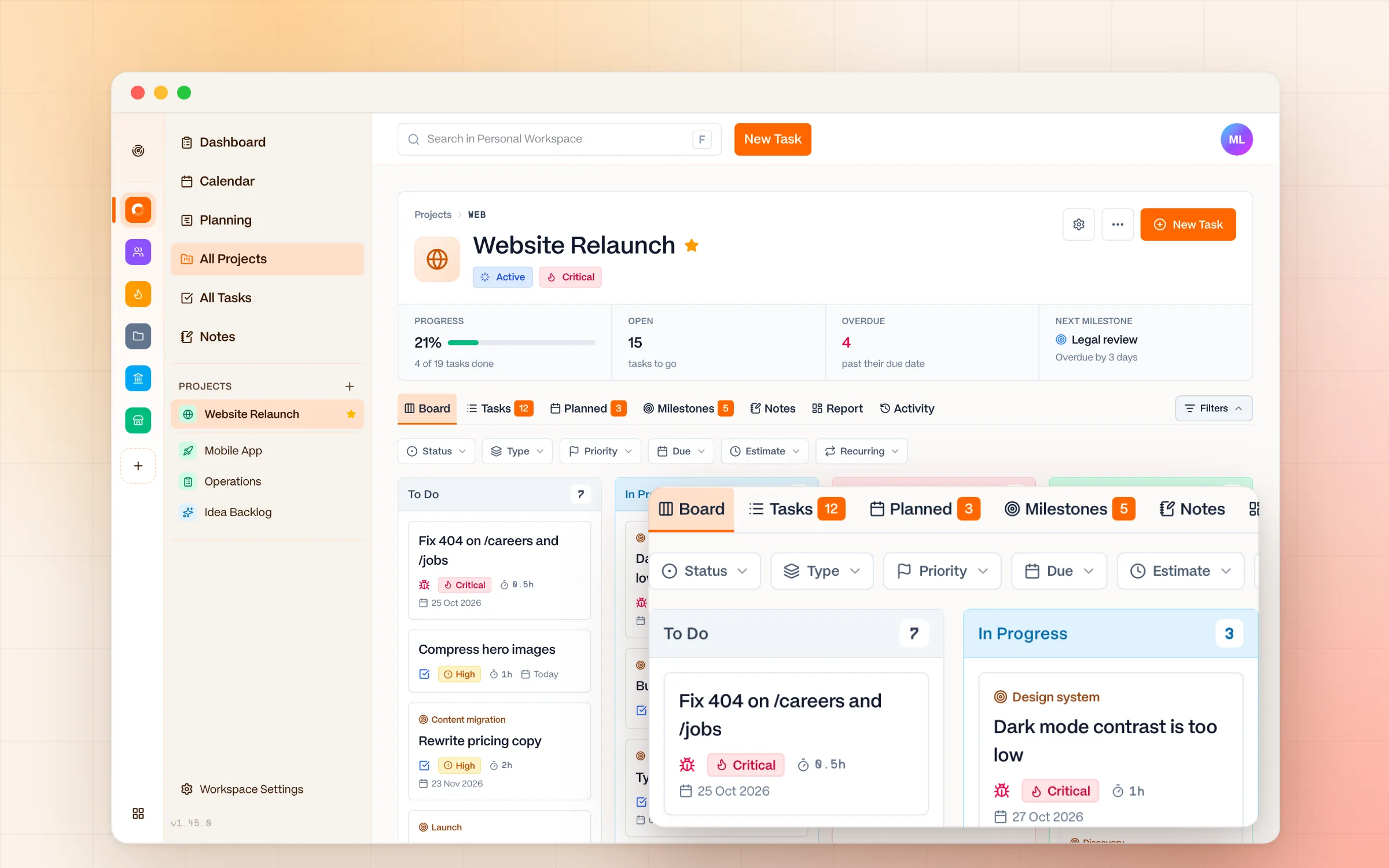
Views
Board, List, Calendar, Milestones
See your work the way that fits the moment. Switch between a Kanban board, a flat list, a calendar, or a milestone timeline - all without leaving the project.
Close a milestone straight from the Planning timeline, and it steps aside so the timeline only shows work still in progress.
What's included in Views6 details
- Kanban board with a column per status, your custom statuses included
- Flat task list you can sort by status, priority, estimate, or due date
- Planned tab for work with a date, and a calendar across all your projects
- Milestones tab and a Planning timeline that steps closed milestones aside
- Filters for status, type, priority, due date, estimate, and recurring tasks, with quick picks like Due this week
- Group the board by status, priority, estimate, or milestone
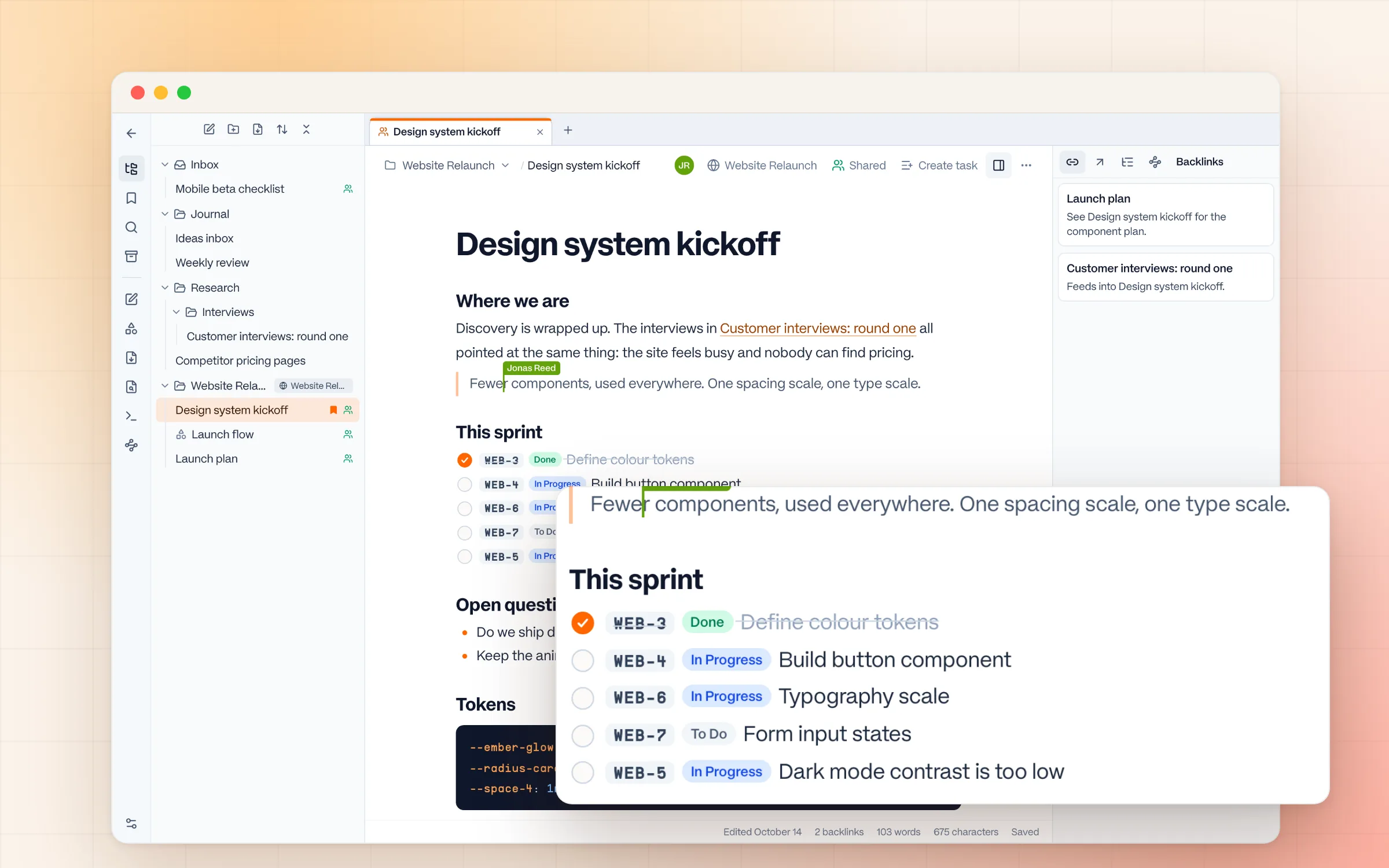
Notes
Notes that turn into tasks
Ember has a writing space of its own. Keep notes in folders, open them in tabs, and switch to focus mode when you only want the page. Type / for headings, checklists, tables, images, highlighted code, Mermaid diagrams, formulas, and footnotes. Paste from Notion, Google Docs, or Word and the formatting comes along, or import Markdown files as notes.
Link notes to each other with [[ and see each note's backlinks and outline, or open the graph to see how all your notes connect. Select any line and make it a task: the line keeps the task's key and live status, and ticking it completes the task. Type a task's key, like WEB-12, and it shows with its current status.
Notes are yours until you share them. Share a note or a whole folder with people from your workspaces, or with a whole workspace, to view or to edit. People in a shared note see each other's cursors and every change as it happens. On the desktop app, a global shortcut captures a quick note from anywhere.
What's included in Notes9 details
- Folders and sub-folders, with colours that carry to the notes and tabs inside
- Slash menu for headings, checklists, quotes, tables, images, code with syntax highlighting, Mermaid diagrams, KaTeX formulas, footnotes, and highlights
- Paste Markdown or rich text from Notion, Google Docs, or Word, import .md files, and copy out clean Markdown
- [[Links]] with backlinks, an outline, a graph of all your notes, and a local graph beside the note you are reading
- Task keys like WEB-12 show live status in the text; link a task with @ or /link task
- Share a note or folder with people or a whole workspace, to view or to edit, and write together with live cursors
- Bookmarks, archive, full-text search, ⌘O to jump to a note, ⌘P for commands, and a focus mode
- Narrow or wide layout, font, and full-width tables, set once for all notes or per note
- Images stored with your account: 1 MB each and 10 MB in all on Free, 5 MB and 2 GB on paid plans
Boards
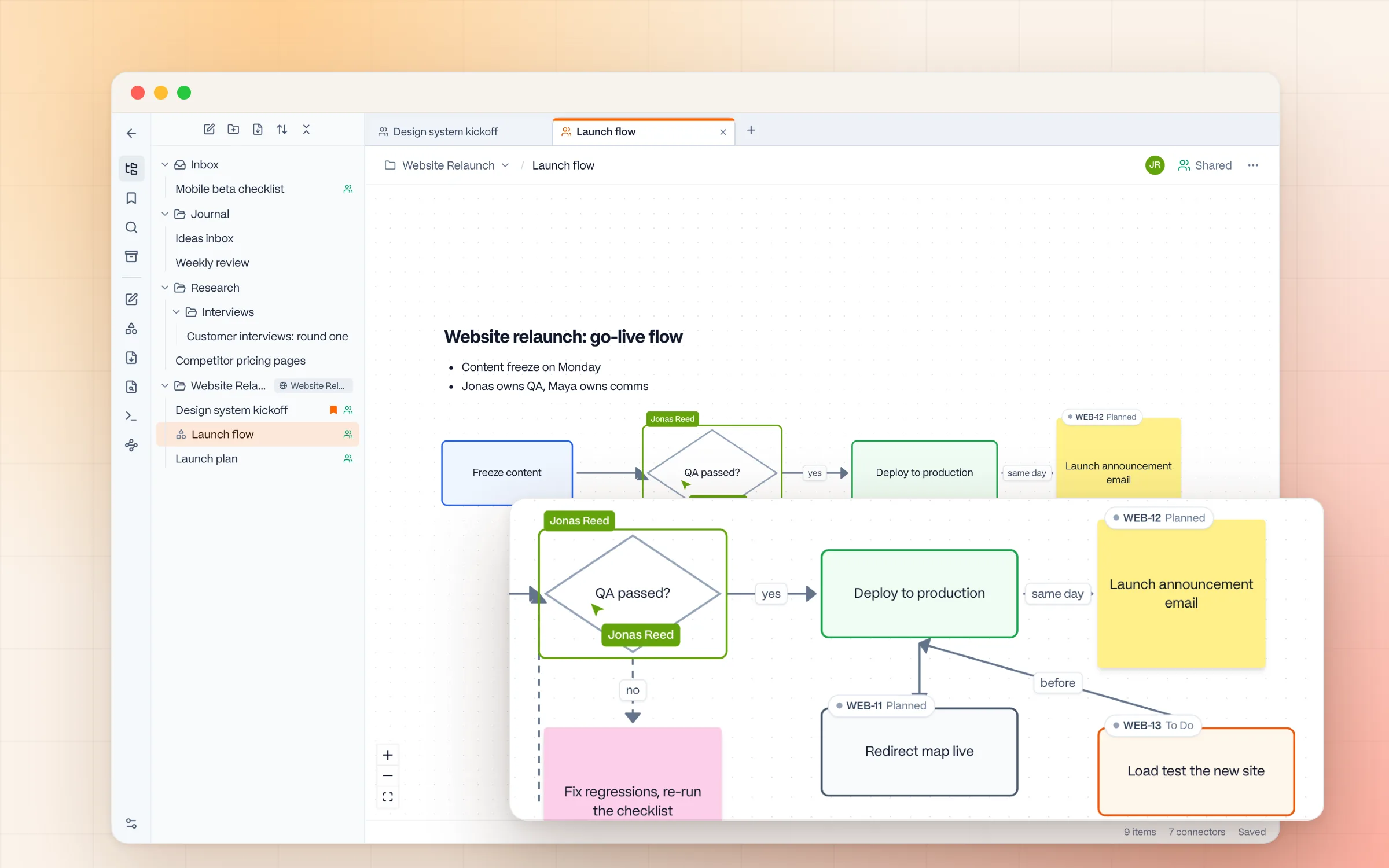
Boards for flows and quick diagrams
A board is a shared canvas inside Notes, for flows and quick diagrams rather than a whiteboard with everything. Add stickies, rectangles, ellipses, decision diamonds, and text, and connect them with arrows you can label, curve, or dash.
Everyone on a board edits it together and sees each other's cursors, selections, and items as they move. Items line up with their neighbours as you drag them, and dragging an arrow into empty space adds a connected item there.
Turn any item into a task and it shows the task's status, one click away. Boards are shared like notes, follow your light or dark theme, and export as PNG or SVG.
What's included in Boards9 details
- Stickies, rectangles, ellipses, decision diamonds, and text in eight colours
- Text items as title, subtitle, body, bulleted, or numbered list: type #, ##, - or 1. to switch
- Arrows with labels, curved, straight, or right-angled, dashed or solid, with arrowheads at one end, both, or none
- Drag an arrow end to reattach it, or drop it on empty space to add a connected item
- Alignment guides and a snap grid keep things tidy without fiddling
- Live co-editing: see teammates' cursors, selections, and moves as they happen
- Turn any item into a task that shows its status and opens in one click
- [[Links]] on a board open their note and count in backlinks and the graph
- Keyboard tools (V, S, R, O, D, T), undo and redo, light and dark theme, PNG and SVG export
Tasks
Tasks that work out of the box, and fit when you need them to
Every workspace starts with clear, built-in statuses and types. Add your own, like In Review or Research, only if you need them. Each one belongs to a built-in category, so boards, filters, and reports stay simple.
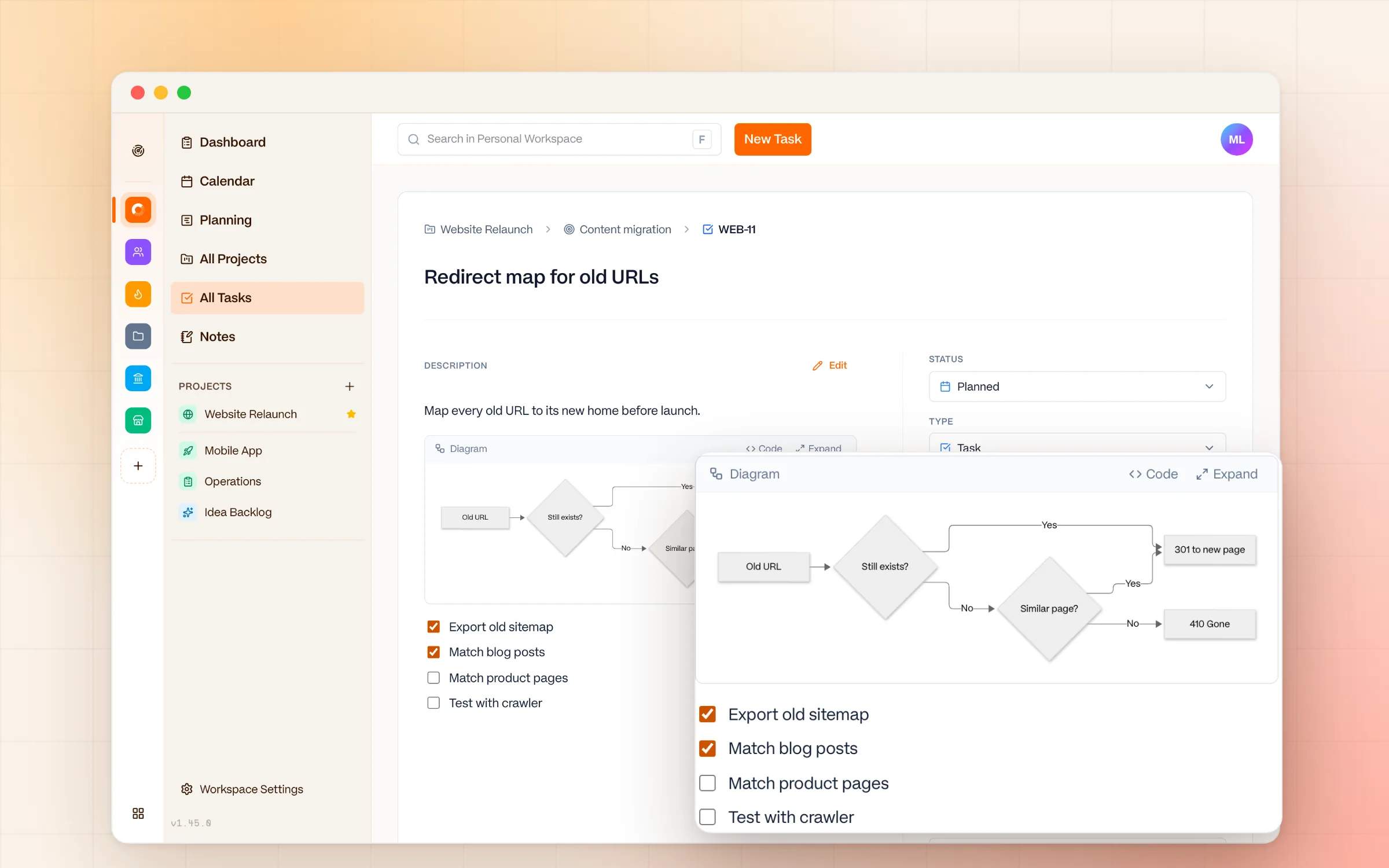
Write descriptions in Markdown, add diagrams, and tick off checklist items in place. Set routines to repeat daily, weekly, monthly, or yearly, and move a task to another project without breaking its old links.
Done tasks are archived on their own after 14 days, so boards stay short. Nothing is deleted: archived tasks stay searchable and still count toward progress.
What's included in Tasks8 details
- Built-in statuses and types that work on day one; rename them or add your own per workspace
- Markdown descriptions with diagrams and checklists you tick off in place; edit name and description inline
- Priority from Critical to Minimal, time estimates, due dates, assignees, and milestones
- Routines that repeat daily, weekly, monthly, or yearly; the next one is created when you complete the current one
- Move a task to another project without breaking its old links
- Create tasks from a note line, a board item, or straight from an AI agent
- Done tasks archive after 14 days (owners can change or turn this off) and stay searchable
- Import tasks per project from a CSV file
Dashboard
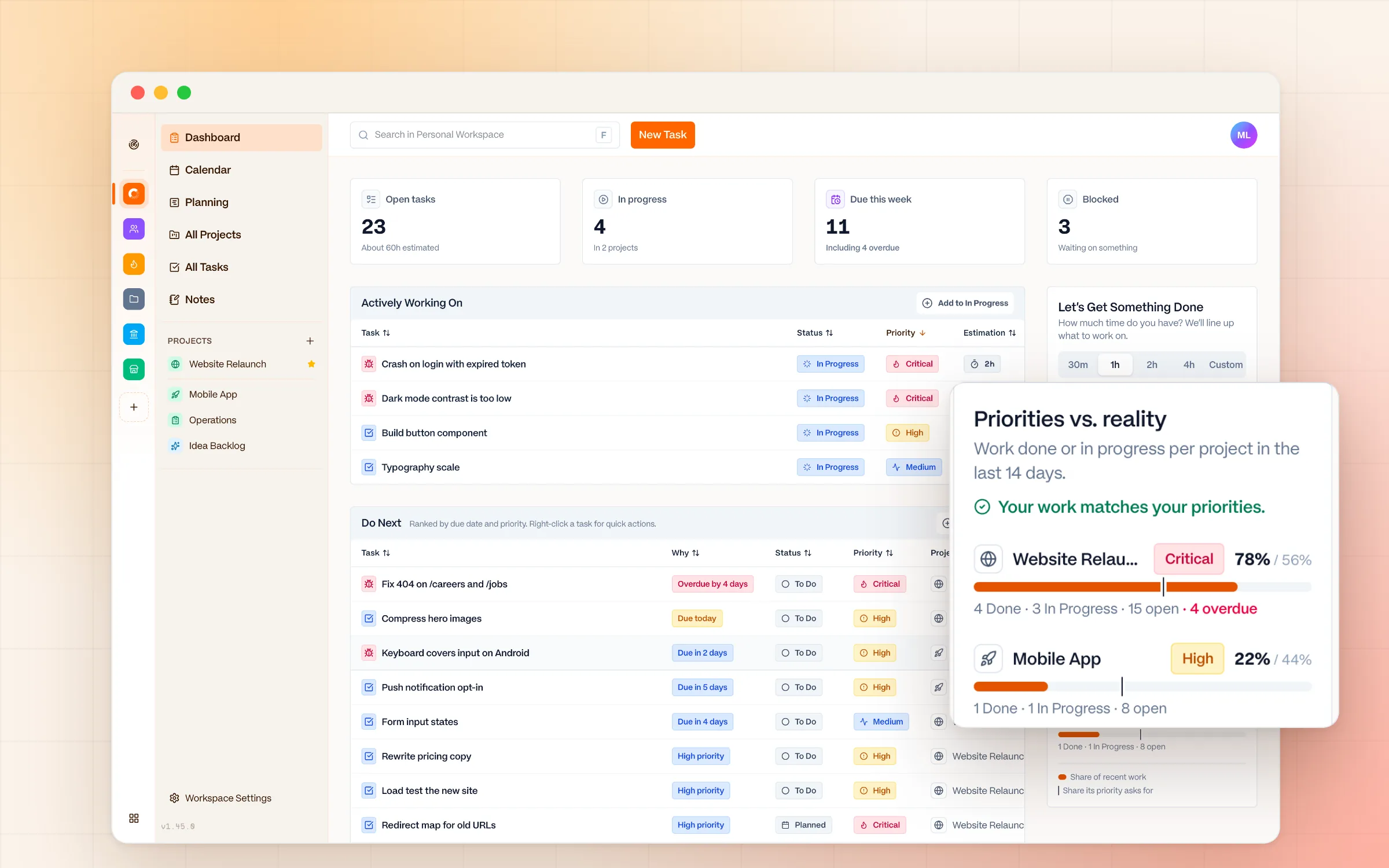
Know what to do next, and whether it matches your priorities
Your dashboard ranks open tasks by due date and priority in a Do Next list, with a short label for why each one is there, such as Overdue or Due today. Click In progress, Due this week, or Blocked to open those tasks.
Priorities vs. reality shows each active project's share of the work done or in progress over the last two weeks, next to the share its priority asks for, and flags the projects where the two disagree.
When you are ready to work, start a session: pick a length the way you would say it, like 90m, and Ember lines up tasks in Do Next order, with or without time estimates. It is not a tracker. It is a page you open when you are ready to decide what comes next.
What's included in Dashboard7 details
- Open tasks, In progress, Due this week, and Blocked at a glance, each one click from its list
- Actively Working On: everything you have in progress, with status, priority, and estimate
- Do Next, ranked by due date and priority, with a Why label such as Overdue or Due today
- Priorities vs. reality: each project's share of the last two weeks of work beside the share its priority asks for
- Work sessions of 30 minutes to a full afternoon, or a custom length typed like 90m or 1h30
- Sessions work without estimates: tasks without one count as 45 minutes or a length you choose; skip tasks or add your own
- What's New lives in the user menu, grouped into New, Improved, and Fixed
Projects
Progress at a glance, history when you want it
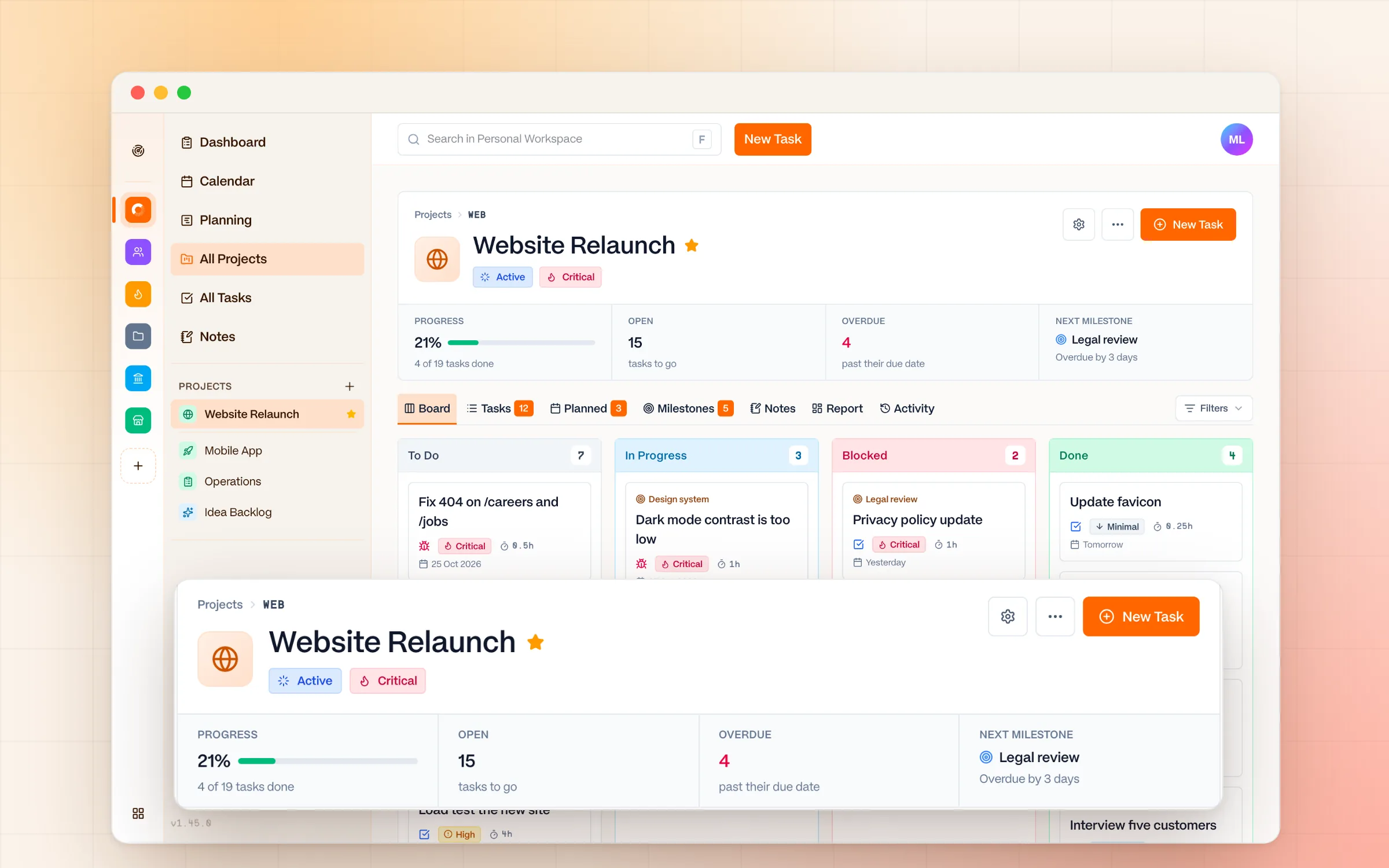
Every project opens with what matters in its header: the project key, its status and priority, progress, open and overdue tasks, and the next milestone. The Report tab breaks the work down by status, priority, type, and milestone, with the remaining estimate.
Filters stay out of the way until you open them. The Filters button beside the tabs shows how many are on, each filter shows what it is set to, and quick choices like Due this week save you a date picker.
The Activity tab shows who changed what and when, including changes made by AI agents. It is a log you open, not a feed that interrupts you. Archive projects you are done with and they leave your sidebar and lists.
What's included in Projects8 details
- Header with the project key, status, priority, progress bar, open and overdue tasks, and the next milestone
- Tabs for Board, Tasks, Planned, Milestones, Notes, Report, and Activity
- Report tab with tasks by status, priority, type, and milestone, and the remaining estimate
- Activity log of who changed what and when, with changes made over MCP labelled
- Filters that fold away, show how many are on, and clear one at a time
- Favourite projects stay on top of the sidebar; archived projects leave it
- Each project has a key, so tasks get short references like WEB-12
- Create a project without leaving the task you are writing
Sonar
One place to see across all your workspaces
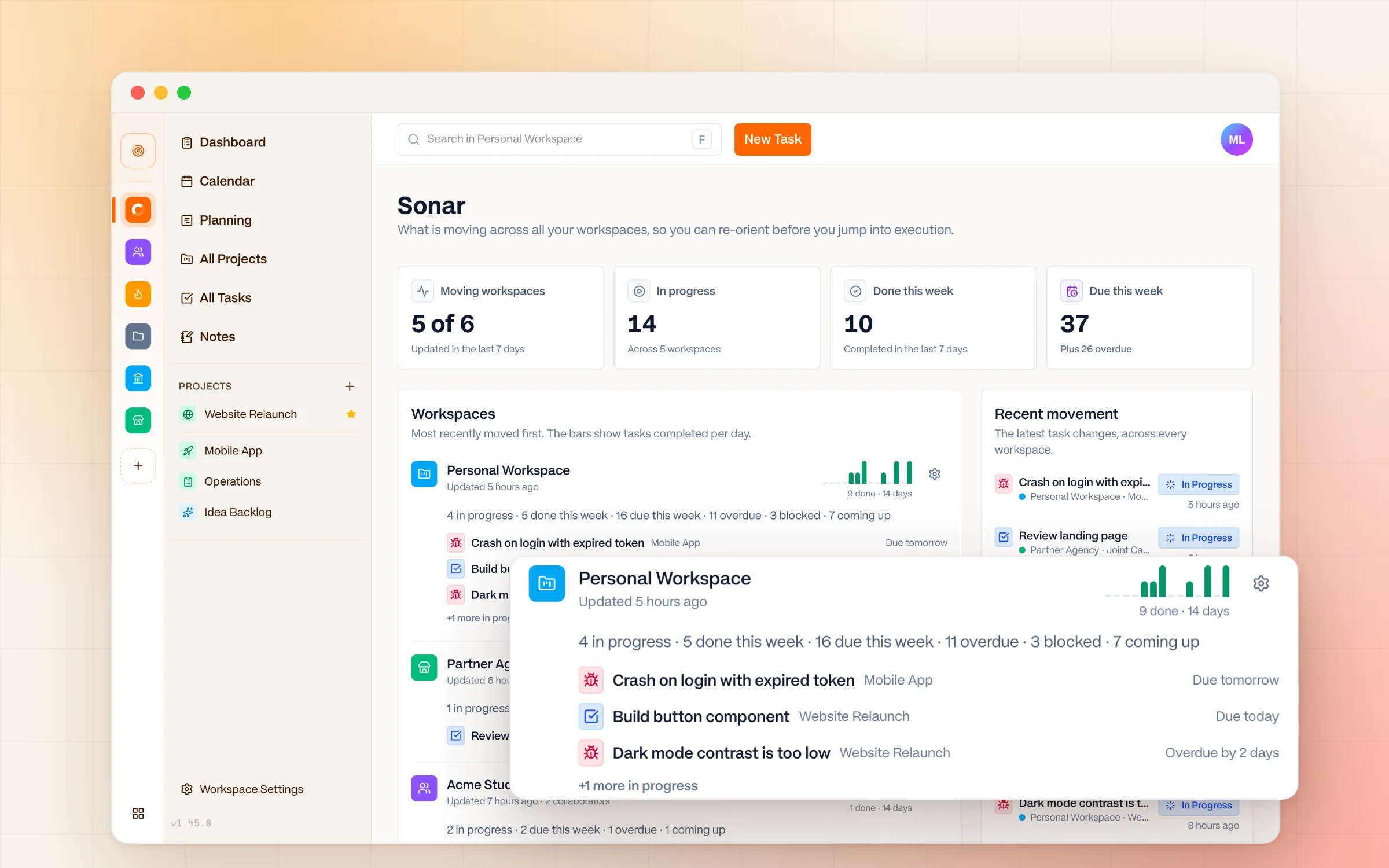
If you work across multiple workspaces - different clients, teams, or contexts - Sonar gives you a single, calm overview of all of them. No jumping between tabs. No badge counts. No notifications.
Workspaces are ordered by recent movement, each with its in-progress tasks and a 14-day completion trend, so you can see where work is moving and where it has stalled.
You check it when you are ready. It does not interrupt you.
What's included in Sonar5 details
- Four numbers up top: workspaces that moved, tasks in progress, done this week, and due this week
- Every workspace in one list, most recently moved first, with its in-progress tasks and what is due
- A 14-day bar chart of tasks completed per day, per workspace
- Recent movement: the latest task changes across all your workspaces
- No badge counts, no unread states, nothing to clear
Workspaces
Structured by default, clear as you grow
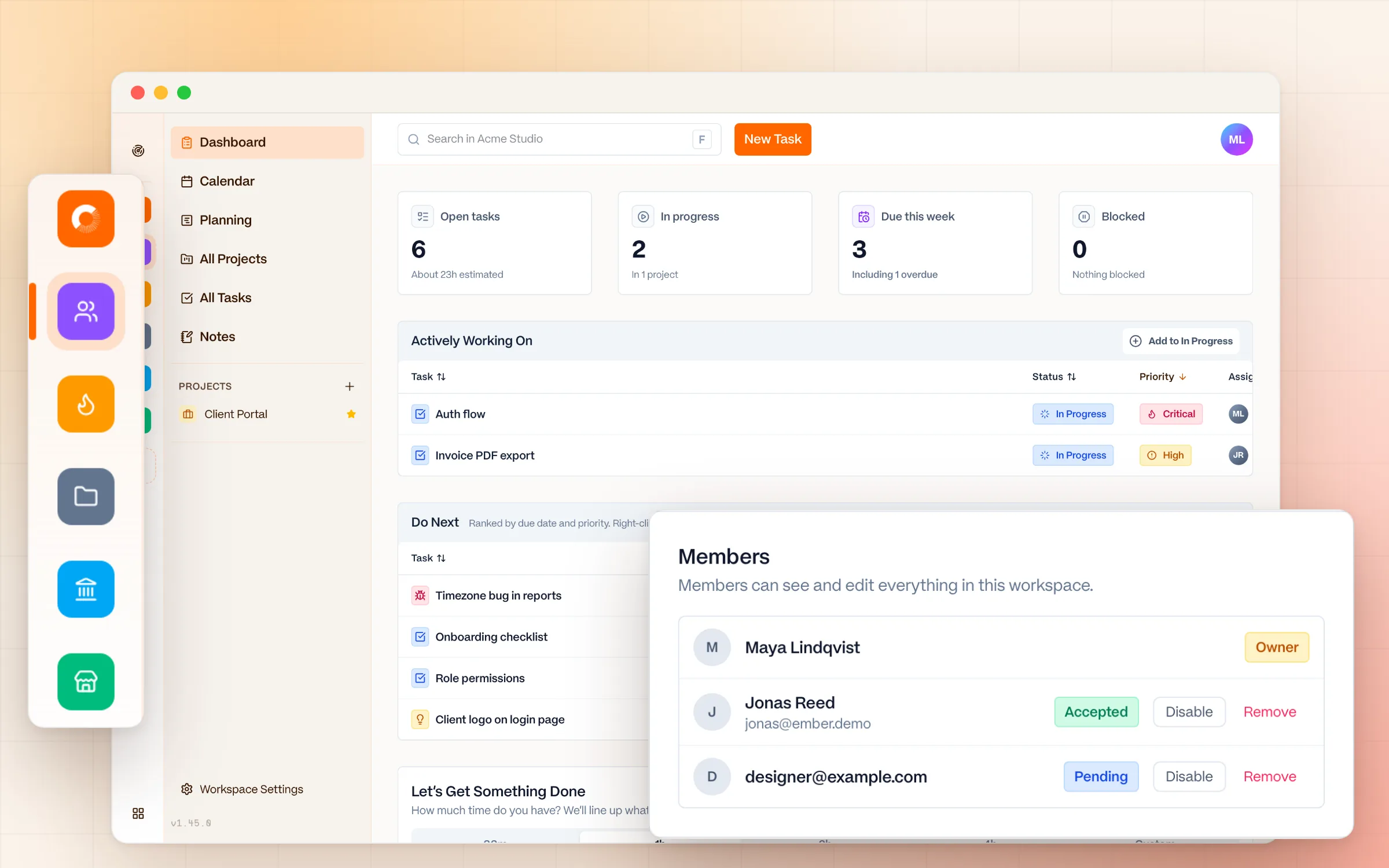
Each workspace maps to a company, client, or team. Projects live inside workspaces.
Everyone in a workspace sees the same source of truth - no private projects, no permission mazes, no role confusion.
Access is simple: Owner or Member.
What's included in Workspaces6 details
- Unlimited workspaces, each with its own icon or logo and colour in the switcher rail
- Owner or Member, nothing in between; members see and edit everything in the workspace
- Seats belong to your account: one person uses one seat across all your workspaces, and the first two are free
- Workspace settings for members, custom statuses and types, the done-task archive period, and the workspace's notes
- A quick switcher to jump between workspaces by name
- Personal workspace for your own work, team workspaces for everyone else
Collaboration
Shared visibility. No noise.
Teams stay aligned without comment threads, @mentions, or notification feeds.
Work stays visible to everyone in the workspace, and conversations happen where they belong - outside the tool.
What's included in Collaboration5 details
- Assign tasks, set priorities and due dates, and let the board do the status update
- Share notes and boards on purpose and write in them together, with live cursors
- An Activity tab per project when someone needs to know who changed what
- No comments, no @mentions, no feeds, no push notifications
- Conversations stay in Slack, email, or wherever your team already talks
MCP
Connect AI agents without giving up your data
Ember supports the Model Context Protocol (MCP), a standard that lets AI agents work directly in your workspace: create and update tasks, plan milestones, write, search, and share notes, turn notes into tasks, and use your workspace's own statuses and types.
Use it with any MCP-compatible agent: Claude, a local assistant, or your own setup. For the most private experience, connect a local model via Ollama or LM Studio and your task data never leaves your machine.
The integration works the same either way. You choose what the agent touches, and where it runs. Every change an agent makes shows up in the project's Activity tab.
What's included in MCP8 details
- Tasks: create, update, complete, move, and delete, with due dates, priorities, estimates, and routines
- Milestones and projects: plan, list, create, and close
- Notes: create, read, search, append, share, and turn lines into tasks
- Statuses and types: read your workspace's own and add, rename, or remove custom ones
- Works with Claude, Cursor, Windsurf, or a local model through Ollama or LM Studio
- Personal API keys, up to 10, shown once, stored hashed, revocable in one click
- An agent reaches the workspaces you own and the notes you can see, nothing else
- Every change is logged in the project's Activity tab with an MCP label
Privacy by default
No tracking. No ads. No AI trained on your content.
Ember only collects the minimum data needed to operate - nothing more.
No behavioral analytics, no session recording, and no selling your data.
Built in the EU. GDPR-compliant by design.
What's included in Privacy by default5 details
- No behavioural analytics, tracking pixels, session replay, or ad networks
- No AI models trained on your tasks or notes
- Only anonymous, aggregated usage metrics to keep the service healthy
- Payments handled by Paddle; Ember never stores your card details
- Run a local model over MCP and your data never reaches an AI company
Data ownership
Your data, always
Export your data at any time. Import CSV files per project.
No lock-in, no hostage data, and no hoops to jump through.
What's included in Data ownership5 details
- Export your projects any time, with statuses and types named the way your workspace names them
- Import tasks into any project from a CSV file
- Copy notes out as clean Markdown, and import Markdown files back in
- Export any board as PNG or SVG
- Cancel any time; paid seats come with a 14-day refund window
Privacy-first by design
Ember is built for focus, not data extraction.
No behavioral analytics, tracking pixels, session replay, ad networks, or AI training on your content. Only anonymous, aggregated metrics keep Ember reliable.
What Ember doesn't have
- No notifications
- No inbox
- No notification feeds
- No comments
- No @mentions
- No productivity scores
- No dark patterns
Not missing. Refused.
Ready to work calmly?
See how Ember fits your workflow and budget.